Write a note from your iPhone Lock Screen
Updated November 3, 2026
In testing: The Void's iPhone app is with early testers on TestFlight right now, and this guide is written for them. It will be on the App Store for everyone soon.
iOS 18 lets you swap the flashlight or camera button on your Lock Screen for an app's control. Put The Void's 'Write memo' control there and a note is one press away, with the keyboard already up.
why the Lock Screen
The moment you unlock your phone to write something down is the moment it gets away from you: a badge, a notification, a feed one swipe away. Starting from the Lock Screen skips all of it. Press, type, send, and the phone goes back in your pocket.
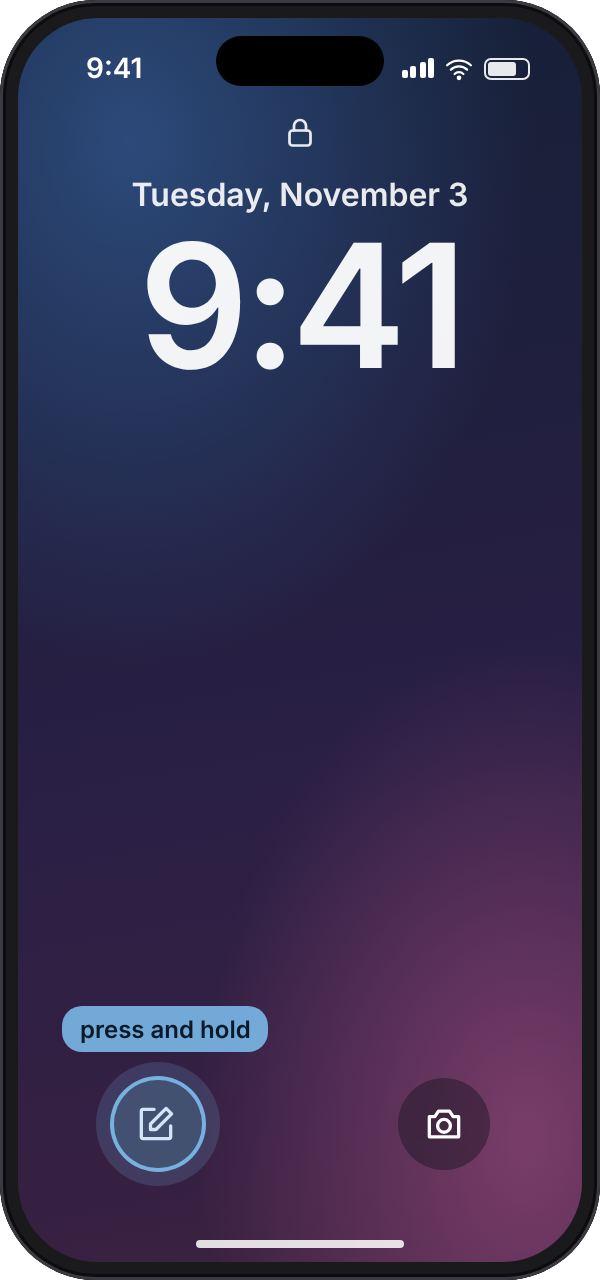
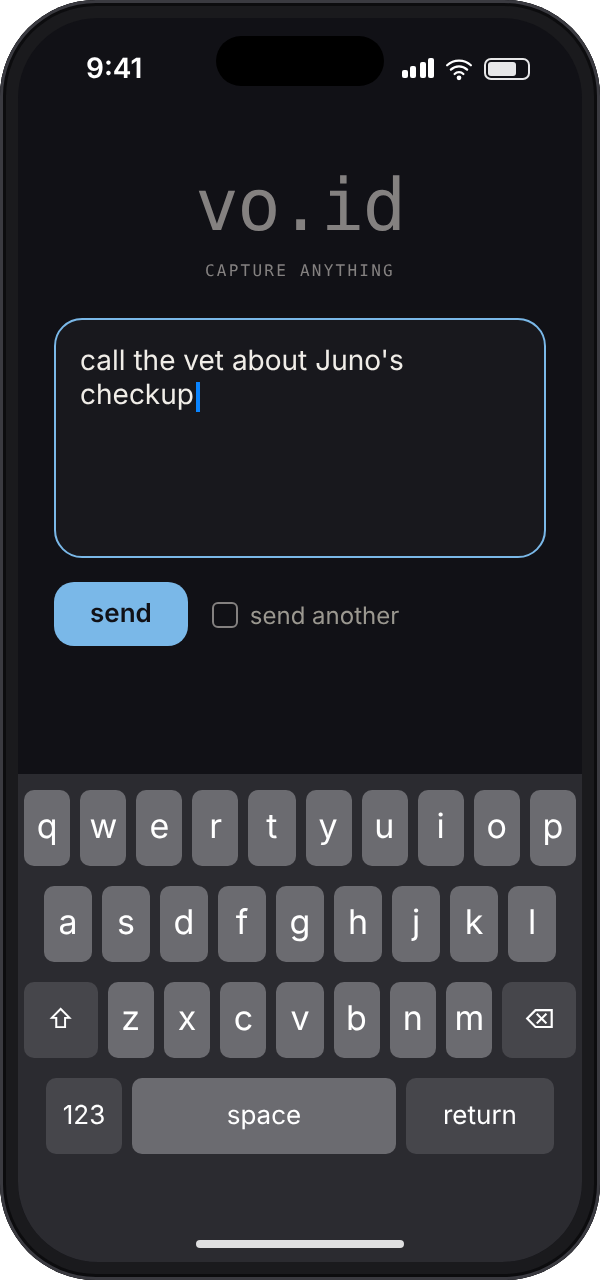
The Void's iPhone app comes with a 'Write memo' control for exactly this. Pressing it opens the app on the capture page with the text box focused and the keyboard up, so the first thing you do is type.
what you need
- An iPhone on iOS 18 or later. Lock Screen controls arrived with iOS 18. On an older version, use Siri instead.
- The Void's iPhone app, opened once and signed in.
add it to your Lock Screen
It takes about a minute. The pictures below follow the steps.
- Unlock your iPhone with Face ID or your passcode but stay on the Lock Screen, then press and hold an empty part of it until it zooms out.
- Tap Customize, then choose the Lock Screen, the preview on the left, not the Home Screen.
- At the bottom, tap the minus on the flashlight or the camera to remove it. Either side works, but we recommend the camera because you can already open it by swiping left from the Lock Screen.
- Tap the empty circle left behind. The controls gallery opens.
- Search for The Void and tap Write memo.
- Tap Done in the top-right corner.
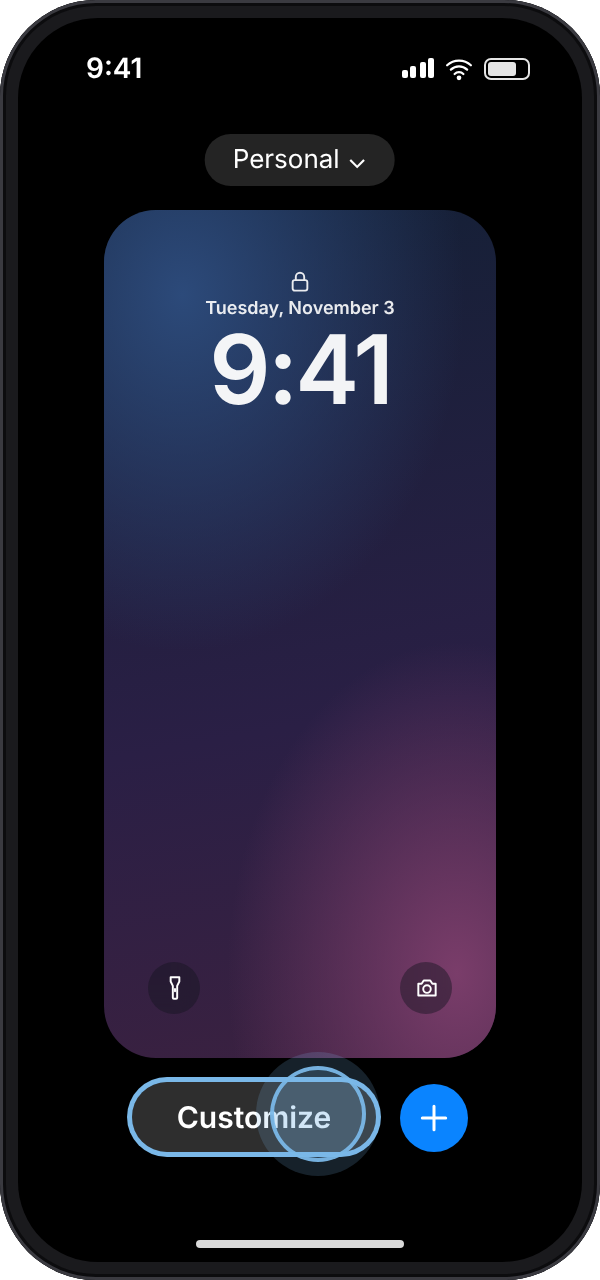
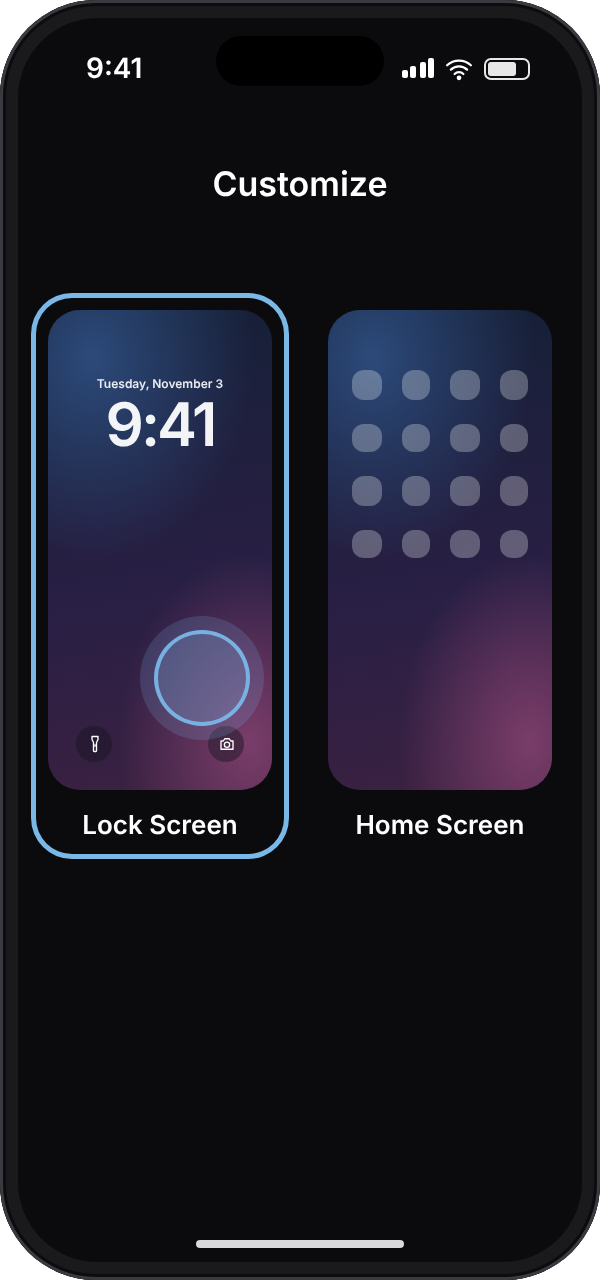
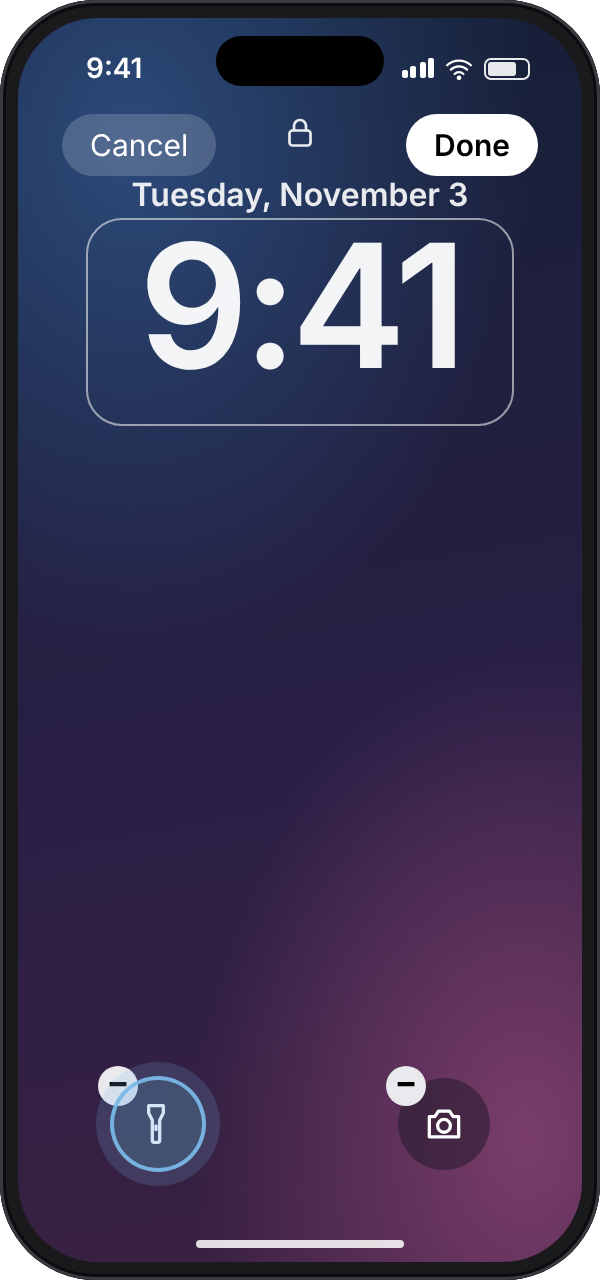
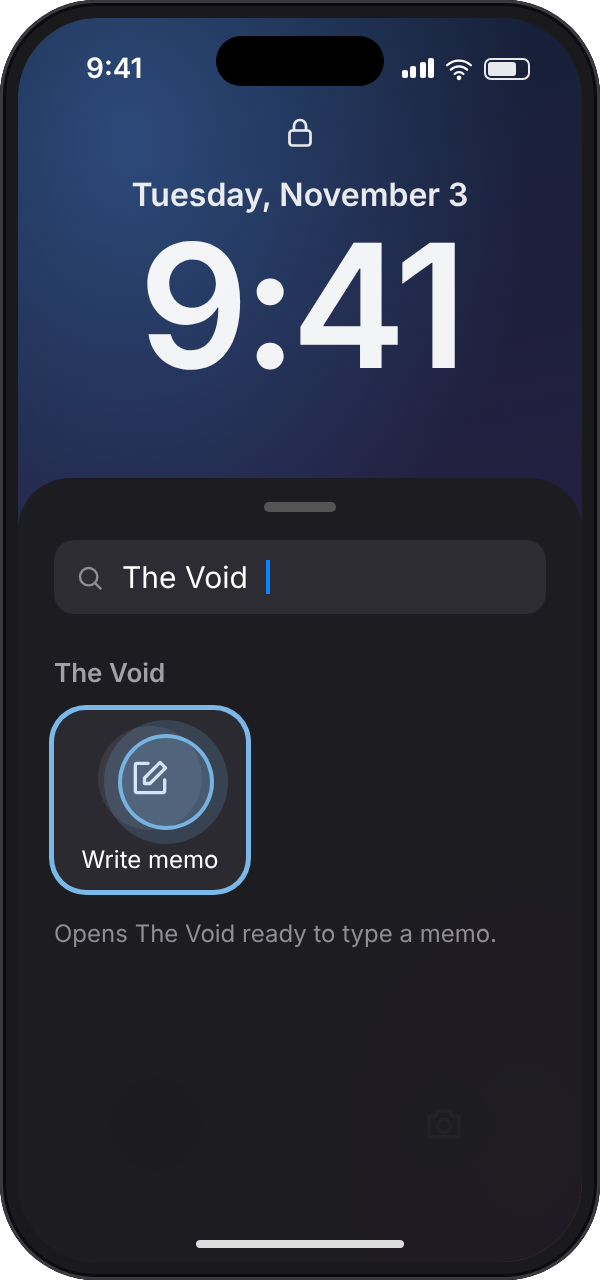
If The Void doesn't come up in the search, check that the app is installed and up to date and has been opened once, then search again.
using it
Press and hold the pencil button on the Lock Screen until you feel the tap. Your iPhone checks Face ID or asks for your passcode, as it does before opening any app, and The Void opens with the keyboard up. Type the thought and tap send, or minimize the keyboard to send a voice memo.
Tick 'send another' to keep the box open for the next one. Add a #tag anywhere, like #groceries, and the memo is filed under it as it arrives. No connection? Send anyway: the memo is kept on your phone and automatically sends once you're back online.
Control Center and the Action button
The same 'Write memo' control works in two other places, and you can use all three.
- Control Center: swipe down from the top-right corner, press and hold an empty space, tap Add a Control, then search for The Void.
- The Action button, on iPhone 15 Pro and later: open Settings, tap Action Button, swipe to Controls, tap Choose a Control and pick 'Write memo'.
what happens next
Each memo is sorted for you behind the scenes, ready to be reviewed when you have time to deal with it.
questions
Can I write a note without unlocking my iPhone?
Not quite. Any Lock Screen button that opens an app checks Face ID or asks for your passcode first. With Face ID that happens as you look at the phone, so Write memo takes you to a blank note in about a second.
Which iPhones can put controls on the Lock Screen?
Any iPhone that runs iOS 18 or later: the iPhone XS, iPhone XR and every model since. Earlier versions of iOS only offer the flashlight and the camera there.
Can I remove the flashlight and camera from the Lock Screen?
Yes, since iOS 18. While customizing the Lock Screen, tap the minus on either button. You can leave the space empty or put another control there, and the camera is still a swipe left away.
Can I put Write memo on the Action button?
Yes, on iPhone 15 Pro and later. In Settings, tap Action Button, swipe to Controls and choose Write memo.
Does it work offline?
Yes. A memo written with no connection is kept on your phone and sent automatically once you're back online.
Does it cost anything?
No. Capture is free and unlimited on every plan, from the Lock Screen or anywhere else.
Can I get The Void's iPhone app?
It's with early testers now and coming to the App Store soon. Until then you can capture on the website, or by text message from any phone.
read more
iPhone, iOS, Siri, Safari, Face ID, Voice Memos, TestFlight and the App Store are trademarks of Apple Inc., and the other names here are trademarks of their respective owners. void is not affiliated with or endorsed by Apple.